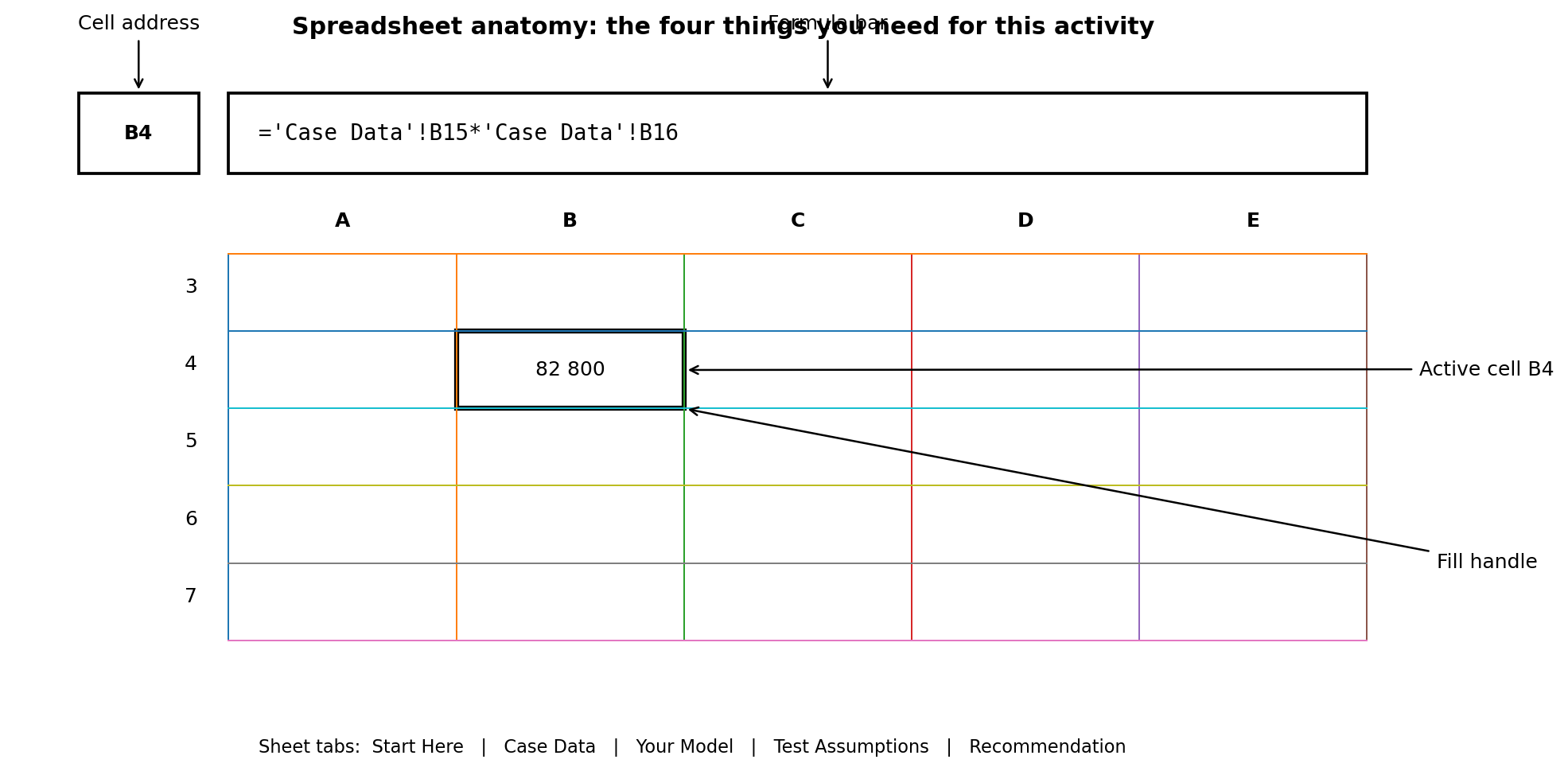
Purpose of this section: provide the minimum spreadsheet skills needed to complete the investment analysis. No prior Excel or Google Sheets proficiency is assumed.
After completing this section, you should be able to:
identify a cell using its column and row address;
enter and edit a formula;
reference data on another worksheet;
distinguish and apply relative, absolute and mixed references;
copy formulas accurately;
apply appropriate number formats; and
inspect a formula to identify a possible error.
Evidence: a correct first useful-generation calculation in Your Model!B4:D4 and successful readiness check.
Platform guide · keep this beside you
Microsoft Excel
Start a formula: type =.
Edit a cell: double-click it or use the Formula Bar.
Copy a formula: drag the fill handle; Ctrl+D fills down on Windows.
Cycle relative/absolute references while editing: F4; on Mac, F4 or ⌘T depending on keyboard settings.
Undo: Ctrl+Z / ⌘Z.
Google Sheets
Start a formula: type =.
Edit a cell: double-click it or use the formula bar.
Copy a formula: drag the fill handle; Ctrl+D fills down and Ctrl+R fills right on Windows/ChromeOS.
Cycle relative/absolute references while editing: F4; on many Macs use Fn+F4.
Undo: Ctrl+Z / ⌘Z. Changes are saved automatically.
Same conceptual rule:B15 is relative, $B$4 is absolute, and $A8 fixes only the column. Dollar signs have the same meaning in both applications.
Story so far: You know what the proposal data mean. Now learn the spreadsheet mechanics needed to turn those inputs into a model.
Excel bridge · just enough Excel to start modelling
You do not need to know Excel or Google Sheets before continuing
You need five moves: select a cell, enter a formula, reference another sheet, copy a formula across, and format a result. You will practise each move on the actual Cape Manufacturing workbook.
1 · Cells and addresses
Columns use letters; rows use numbers. Their intersection is a cell. B4 means column B, row 4.
Click Case Data!B4. The Name Box identifies the active cell.
2 · Formulas begin with =
Excel calculates only when an entry begins with =.
Example: =2+3 returns 5. In this course, however, you will reference cells rather than type business inputs into formulas.
3 · Referencing another sheet
A reference such as 'Case Data'!B15 means “use the value in cell B15 on the Case Data sheet”.
The quotation marks appear because the sheet name contains a space.
4 · Relative vs absolute
B15 is relative: copied one column right, it becomes C15.
$B$4 is absolute: copied anywhere, it remains B4. Use this for the shared tariff.
Guided practice · your first live formula
Calculate System A useful generation
Click the Your Model sheet.
Select the yellow cell B4.
Type exactly:
='Case Data'!B15*'Case Data'!B16
Press Enter. You should see 82,800.
Click B4 again. Move the pointer to the small square at the bottom-right corner of the selection (the fill handle). Both Excel and Google Sheets use this control.
Drag the fill handle across to D4. In Google Sheets you can alternatively select B4:D4 and use Fill right / Ctrl+R where supported. Excel should adapt the relative references for Systems B and C.
Check the three values
B4 = 82,800, C4 = 102,850, D4 = 114,660.
Formatting essentials
Values and presentation are different things
Use Currency/Accounting formatting for rand amounts.
Use Percentage formatting for rates such as 90%.
Use Number with two decimal places for payback years.
Do not type “R”, “%” or “years” into numeric cells; use number formats so Excel can still calculate with the values.
If you make a mistake: use Undo (Ctrl+Z on Windows; ⌘Z on Mac). A formula can always be edited in the cell or Formula Bar.
Formative readiness check: you can now enter a formula, read a cross-sheet reference, copy a relative formula and recognise an absolute reference.
Next: use those moves to complete the commercial model.